
Quick answer: On its own, Google Forms detects almost nothing — it only records the time a response is submitted. It becomes a cheating-detection tool when a teacher adds something on top: a proctoring add-on like AutoProctor (webcam, screen recording, tab-switch logging) or Locked mode on a managed Chromebook (blocks tab-switching, screenshots, and copy-paste). So whether a teacher can “catch” cheating depends entirely on what they’ve bolted onto the form.
Google Forms is one of the most popular tools teachers use to build online quizzes — it’s free, fast, and auto-grades. But a plain Google Form was never designed to stop cheating: during an unproctored quiz, a student can open another tab or grab their phone to look up answers. So can teachers actually detect that? The honest answer depends on whether the form is running on its own or paired with proctoring tools. Here’s exactly what each setup can and can’t see.
Wondering how each tool catches cheating? See our full guide to online cheating detection.
What Google Forms Detects on Its Own
By itself — with no add-ons and no managed device — Google Forms has almost no cheating-detection ability. Specifically:
- It records the submission timestamp. A teacher can see the date and time a response was submitted (if the form is set to collect it), but not when it was first opened or how long it took.
- It does not track tab-switching. Plain Google Forms cannot tell if you opened another tab, switched windows, or used a second device.
- It does not record your screen, webcam, or microphone.
- It cannot detect screenshots or copy-paste.
Teachers can still make a plain form harder to game — shuffling question order, limiting to one response per account, and setting a tight time window — but none of that detects cheating; it just discourages it. Real detection needs one of the two setups below.
Locked Mode (Managed Chromebooks)
Locked mode is Google’s own built-in lockdown feature for quizzes, turned on with a single checkbox under a form’s Chromebook settings when the quiz is assigned through Google Classroom. When it’s on, the quiz opens full-screen and the student can’t open other tabs or apps, take screenshots, or copy and paste — and if they exit full-screen, the teacher gets an alert.
The big catch: Locked mode only works on school-managed Chromebooks. A student taking the same quiz on a personal PC, Mac, tablet, or phone gets no lockdown at all. So it’s powerful in one-to-one Chromebook schools and irrelevant everywhere else.
Detecting Cheating with AutoProctor
For schools that aren’t all-Chromebook, the common answer is a proctoring add-on. AutoProctor is the best-known one built specifically for Google Forms: it records the student’s screen, uses the webcam and microphone to monitor the testing environment, and logs activity — including every time a student switches or opens a tab.
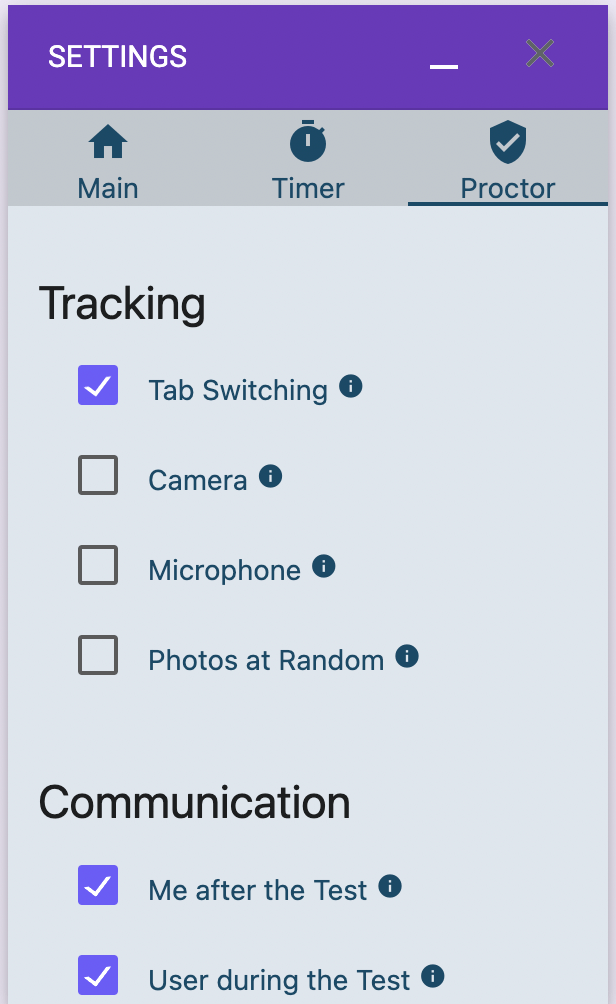
When a test ends, AutoProctor’s AI calculates a trust score from all the evidence it gathered — the frequency and duration of any violations. It also adds a timer and Start/End time controls so students can’t open the quiz early or late. This puts it in the same category as full proctoring services like Proctorio and Honorlock.
One tell for students: a proctored quiz doesn’t use a normal Google Forms link. Instead, the teacher sends a unique AutoProctor link, and you’ll be asked to grant camera, microphone, and screen-recording permission before the test starts.
What Is Online Proctoring?
Online proctoring is exam invigilation delivered remotely — usually by a third-party service that uses either artificial intelligence or live human proctors to monitor students taking a test from home. There are three common types:
Automated Proctoring
AI watches for signs of cheating, tracking facial movements and browser activity to flag anything unusual. The session is recorded and flags are reviewed after the test. AI is tireless but can misread an innocent moment as a violation.
Live Proctoring
A human invigilator watches through the student’s webcam and microphone in real time. A live proctor can be distracted, but is much better than AI at telling an honest mistake apart from actual cheating.
Recorded Proctoring
The full session is recorded (video, audio, and periodic screenshots), then a reviewer scans the footage afterward at speed to flag anything suspicious.
Can Teachers See If You Switch Tabs on Google Forms?
Plain Google Forms cannot tell if you switch tabs — but a proctored form can. If the quiz is running through AutoProctor, every tab switch is detected and logged. If it’s a Locked-mode quiz on a managed Chromebook, you simply can’t switch tabs at all, and exiting full-screen alerts the teacher.
There’s a third path too: if you’re on a school-issued device running a monitoring tool like GoGuardian, your teacher may be able to see your screen and even lock your device — regardless of whether the form itself is proctored. The practical tell: check the link. A normal Google Forms or Google Docs link means no built-in proctoring; an AutoProctor link means you will be monitored.
Can Teachers See If You Screenshot on Google Forms?
Plain Google Forms cannot detect screenshots, and neither can AutoProctor directly — though because AutoProctor records the full screen during a test, a screenshot action (and any pop-up it triggers) would show up in that recording. Locked mode does block screenshots outright on managed Chromebooks. So on an ordinary form, a screenshot goes unnoticed; under Locked mode it’s prevented; under AutoProctor it may be captured on the screen recording. Whether it’s detected doesn’t decide whether it’s allowed: copying quiz questions out of a test usually breaks the rules on its own.
Frequently Asked Questions
Can Google Forms detect cheating without any add-ons?
No. On its own, Google Forms only records when a response is submitted. It can’t track tab-switching, screen activity, screenshots, or which device you used. Detection requires a proctoring add-on like AutoProctor or Locked mode on a managed Chromebook.
Does Locked mode stop cheating on Google Forms?
It helps a lot — but only on school-managed Chromebooks. Locked mode blocks other tabs and apps, screenshots, and copy-paste, and alerts the teacher if a student leaves full-screen. On a personal PC, Mac, tablet, or phone, Locked mode doesn’t apply.
How do I know if a Google Form uses AutoProctor?
Check the link. AutoProctor quizzes use an autoproctor URL and are taken on the AutoProctor platform, and they prompt you to allow camera, microphone, and screen-recording access before starting. A plain Google Forms URL means no AutoProctor.
Can teachers see when you open a Google Form?
Not on a plain form — Google Forms only logs the submission time, not when you first opened it. A proctoring add-on such as AutoProctor logs when the proctored test was started and flags activity during it, such as tab switches. A lockdown browser blocks other apps but doesn’t report when you opened a form.
Can teachers see what time you open a Google Form?
A plain form records the date and time you submit, not when you first opened it. Third-party proctoring add-ons can log the open time and all activity during a proctored test.
Does Google Forms track your activity?
By itself, no — only the submission date and time. Add-ons like AutoProctor can record and log activity: screen, webcam, microphone, tab-switching, and a final trust score based on what they observed.
Keep reading
Josh Hutcheson — Editor, PriorityLearn
Josh researches, writes, and updates the answers on PriorityLearn, checking each one against current tools, official sources, and real school policies — and flagging what varies by state or district. About PriorityLearn →
Pingback: Can Online Tests Detect Cheating? What Every Tool Actually Catches