
Zoom is still a normal part of school and college, and one question comes up again and again: can the teacher turn your microphone on without you knowing? Zoom answers it directly in its own help center, so this guide sticks to what Zoom says and explains each setting a teacher or meeting host can use.
Can teachers unmute you on Zoom?
Only with your permission. Zoom’s help article on the feature says that “hosts and co-hosts need pre-approved consent from attendees to unmute them in a meeting” (Zoom: Requesting permission to unmute participants).
Teachers who want that ability turn on a setting called Request permission to unmute participants. When it is on, everyone who joins sees a dialog asking whether they allow the host to mute or unmute them. If you allow it, the teacher can unmute you individually from the participants list. If you don’t, the teacher only sees the regular Ask to Unmute and Mute options for you.
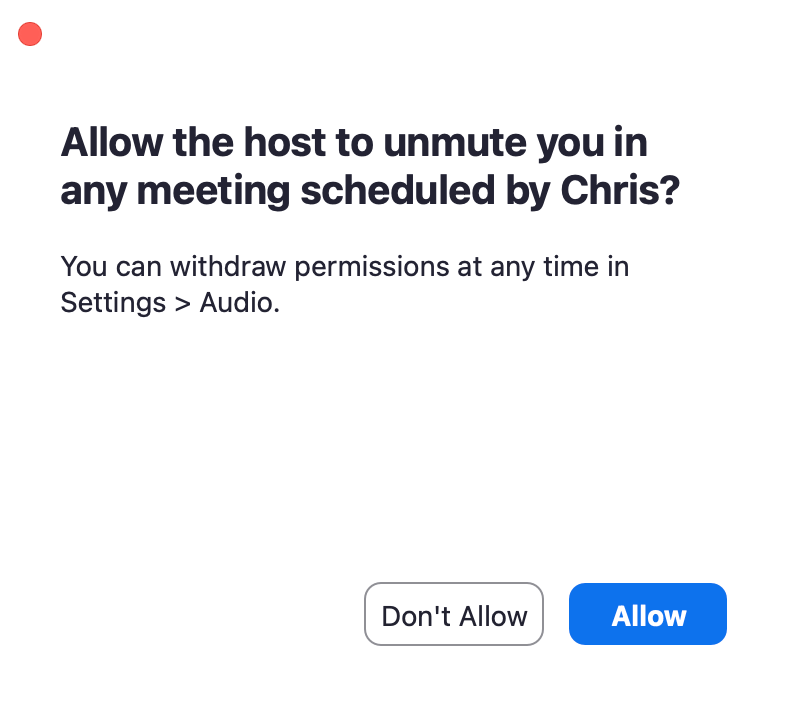
Two details are easy to miss:
- Consent carries over. Zoom says that once you have given consent to a host, future meetings with that host and this setting enabled use the same pre-approved consent. You won’t be asked again by that teacher.
- Ask to Unmute is only a request. Without your consent, the teacher can send a prompt asking you to unmute, and nothing happens unless you click Unmute yourself.
What a teacher can do without your consent
Consent only covers unmuting. A host or co-host can do several things to your audio without asking, and Zoom documents all of them (Zoom: managing participants’ audio):
- Mute you, or mute everyone at once with Mute all.
- Mute everyone as they join with Mute all upon entry.
- Stop you unmuting yourself. When muting everyone, the host can clear Allow participants to unmute themselves.
- Ask everyone to unmute with Ask all to unmute. Zoom says participants “can choose to stay muted or unmute themselves.”
So a teacher can always silence the class. The one thing they can’t do without your earlier consent is switch your microphone on.
Can a teacher hear you when you’re muted?
No. Zoom’s help center is plain about it: while you’re on mute, “other participants in the Zoom meeting will not hear you” (Zoom: Muting and unmuting yourself). A run of viral videos in 2021 claimed teachers had a hidden way to listen to muted students, and Snopes rated that claim False after checking Zoom’s documentation (Snopes fact-check).
When a teacher has muted everyone
If your teacher muted the class and turned off self-unmuting, your unmute button won’t work. Zoom says that when participants try to unmute, “they will receive a notification that the host is not allowing participants to unmute themselves” (Zoom). Raise your hand or use the chat instead, and the teacher can let you speak.
Is the class being recorded?
You’ll know. When you join a meeting that’s being recorded, Zoom asks for your consent: you can click OK to stay, or Leave and then Leave Meeting to exit. If recording starts after you’ve joined, Zoom prompts you then (Zoom: providing consent to be recorded). If you have a concern about a class recording, ask your teacher or school about their policy rather than leaving the lesson.
How to keep control of your microphone in a Zoom class
None of this is about hiding from class. If your teacher or school asks you to unmute or to allow the setting, follow their rules. These steps are simply how Zoom’s consent settings work, so you know what you’re agreeing to.
Read the prompt before you click Allow
The unmute-permission dialog appears as you join. Clicking Allow gives that host the ability to unmute you in this meeting and in their later meetings that use the setting. Clicking the option to decline lets you join while keeping the decision to unmute yourself. It’s worth reading every Zoom pop-up rather than clicking through it.
Answer an Ask to Unmute request yourself
If you haven’t given consent, a teacher who wants to hear from you sends an Ask to Unmute request. Zoom shows you a prompt, and you choose whether to unmute or stay muted.
Changed your mind after saying yes?
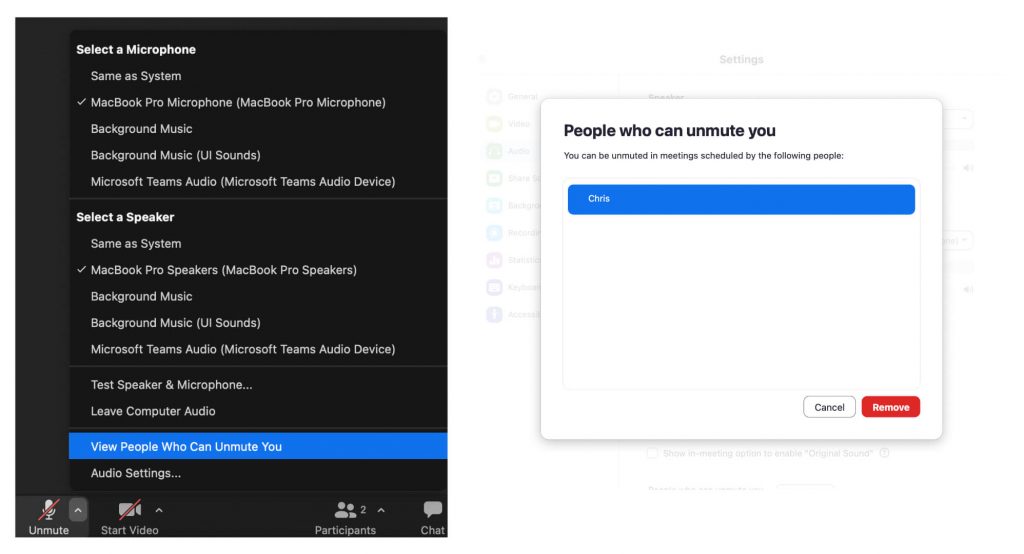
In 2023 the Zoom desktop app’s audio menu included a View People Who Can Unmute You option, where you could remove a host from your list (the screenshot below is from that version). Zoom’s current help article on this setting doesn’t describe that menu, so it may look different or be missing in your version. If you can’t find it, ask your teacher to turn the setting off for the class, or ask your school’s Zoom administrator.
Raise your hand instead of unmuting
If you want to speak but aren’t sure it’s your turn, use Zoom’s raise-hand feature. Click Reactions in the meeting controls, then Raise Hand. The keyboard shortcut is Alt+Y on Windows and Option+Y on a Mac. Zoom notifies the host, and “if the host allows you to talk, you may be prompted to unmute yourself.” Click Lower Hand when you’re done; Zoom notes that lowering your hand doesn’t mute you if you’re unmuted (Zoom: raising your hand).
Quick checklist before class
- Join a minute early and check which microphone Zoom is using.
- Read the unmute-permission prompt instead of clicking straight through it.
- Stay muted until you speak; it cuts background noise for everyone.
- Know where Raise Hand and Chat are, so you can get the teacher’s attention when the class is muted.
- Remember that being muted stops your audio, not your video: if your camera is on, the class can still see you.
How the “Request permission to unmute” setting works (for teachers)
Zoom’s help article lists three levels. A school’s Zoom administrator can turn the setting on for the whole account or for a group, and can lock it so it’s mandatory. An individual teacher can also turn it on for their own meetings:
- Sign in to the Zoom web portal.
- Click Settings, then the Meeting tab.
- Under In Meeting (Advanced), turn on Request permission to unmute participants.
- If the option is grayed out, it has been locked at the group or account level, so only the Zoom admin can change it.
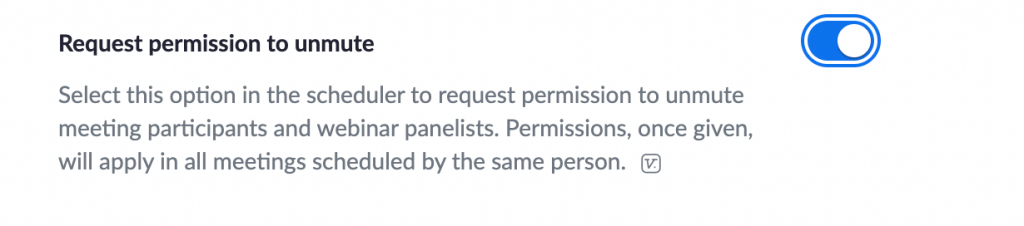
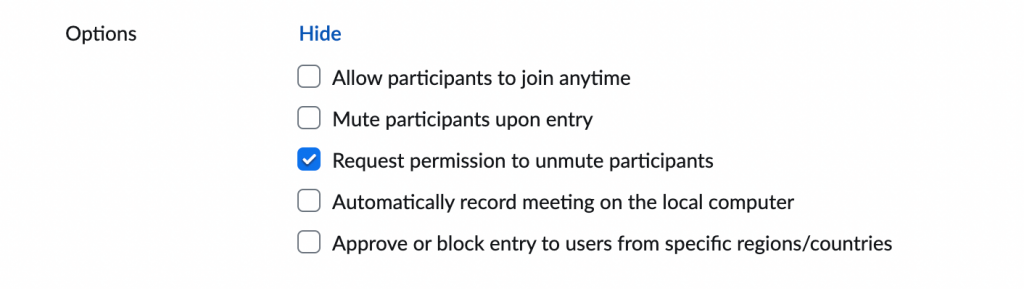
To add it to a meeting that’s already scheduled, go to Meetings in the web portal, open the Upcoming tab, click Edit next to the meeting, and tick Request permission to unmute participants under Meeting Options, then click Save.
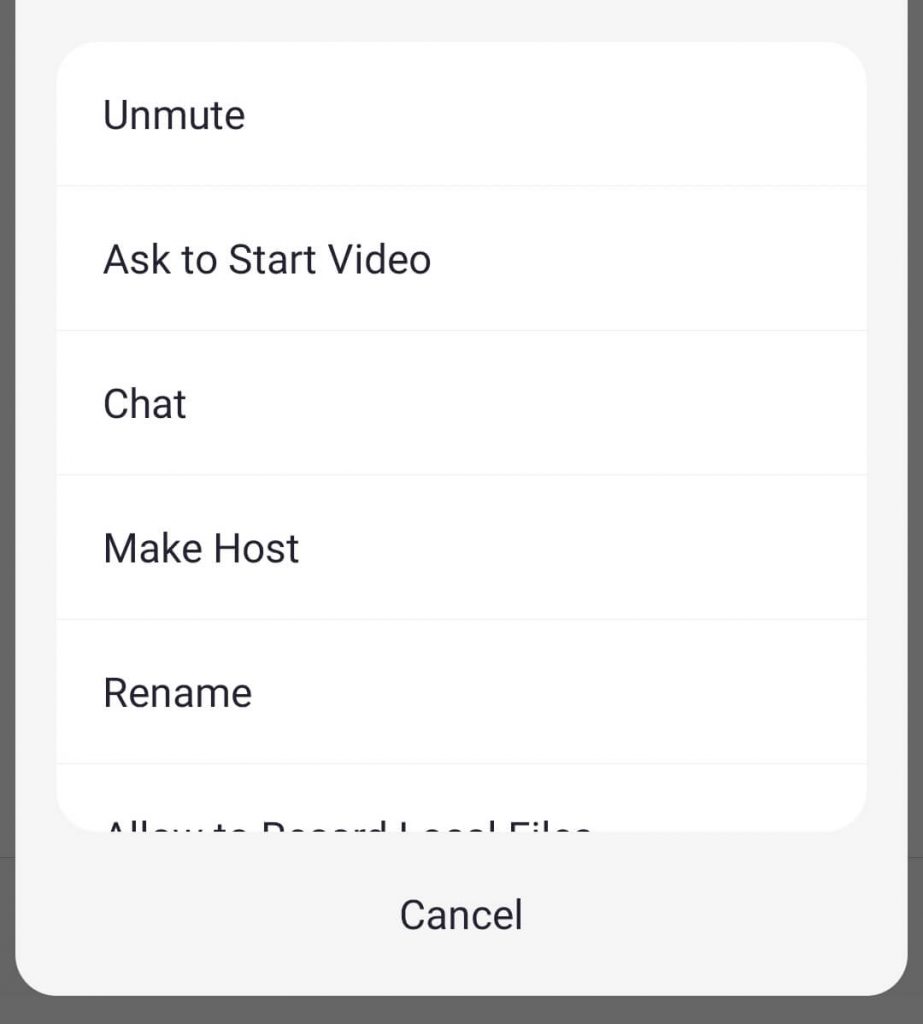
During the meeting, the teacher opens Participants, hovers over (or taps) a student’s name and chooses Unmute. Zoom notes that the instant Unmute option only appears when pre-approved consent is enabled and that participant has given it. Otherwise the teacher sees Ask to Unmute. Zoom lists version 5.2.1 or later of the desktop and mobile apps as the requirement.
Good practice for teachers
- Tell students why you’re turning the setting on, for example to bring a student in quickly during discussion.
- Try Ask to Unmute first; it keeps students in control and usually works.
- Use Mute all upon entry for large classes so lessons start quietly.
- If you disable self-unmuting, tell students to use Raise Hand or Chat so nobody is left unable to ask a question.
- Check your school’s Zoom settings; an administrator may already have set or locked them.
Can teachers on Zoom see you or your screen?
Through Zoom itself, a teacher sees your video only when your camera is on and your screen only when you share it. If you’re using a school-issued laptop, monitoring software such as GoGuardian is a separate tool that works outside Zoom. Our guides on what GoGuardian lets teachers see and whether teachers know when you leave Zoom or switch tabs cover those questions.
| What the teacher wants to do | Can Zoom do it? | What it depends on |
|---|---|---|
| Mute you | Yes | Hosts can mute participants at any time |
| Unmute you instantly | Only with consent | You allowed the Request permission to unmute prompt |
| Ask you to unmute | Yes | You decide whether to accept |
| Mute everyone | Yes | Mute all, or Mute all upon entry |
| Stop you unmuting yourself | Yes | Host clears “Allow participants to unmute themselves” |
| Hear you while you’re muted | No | Zoom: muted participants are not heard |
| See your screen | Only if you share it | School monitoring software is separate from Zoom |
Frequently asked questions
Can a teacher unmute me on Zoom without asking?
Only if you gave consent. Zoom says hosts and co-hosts need pre-approved consent to unmute a participant. That consent comes from the “Request permission to unmute” prompt you see when you join. If you decline it, the teacher can only send an “Ask to Unmute” request, which you choose whether to accept.
Can my teacher hear me when I’m muted on Zoom?
No. Zoom’s help center says that while you’re on mute, other participants in the meeting will not hear you. Snopes rated the viral claim that teachers can secretly listen to muted students False.
If I say yes once, does it apply to every class?
It applies to that host. Zoom’s help article says that once consent has been given to a host, future meetings with that host and this setting enabled carry the same pre-approved consent.
Can a teacher see my screen on Zoom?
Not through Zoom unless you share your screen or turn on your camera. Monitoring software on a school-managed device is a separate tool with its own rules.
Can professors unmute you on Zoom?
The same rules apply to professors as to any Zoom host. They can mute you at any time, but they can only unmute you directly if you gave pre-approved consent through the Request permission to unmute prompt. Otherwise they can only ask you to unmute.
Can a teacher stop me from unmuting myself on Zoom?
Yes. When a host uses Mute all, they can clear the option that allows participants to unmute themselves. Zoom says that if you then try to unmute, you get a notification that the host is not allowing participants to unmute themselves.
How do I raise my hand on Zoom?
Click Reactions in the meeting controls, then Raise Hand. On Windows the shortcut is Alt+Y and on a Mac it is Option+Y. Zoom notifies the host, and if they let you speak you may be prompted to unmute.
Will Zoom tell me if my class is being recorded?
Yes. Zoom shows a recording consent prompt when you join a recorded meeting, and participants already in the meeting are prompted when recording starts. You can click OK to stay or Leave to exit the meeting.
Josh Hutcheson — Editor, PriorityLearn
Josh researches, writes, and updates the answers on PriorityLearn, checking each one against current tools, official sources, and real school policies — and flagging what varies by state or district. About PriorityLearn →
Pingback: Can Teachers See Your Screen on Microsoft Teams? What Is Actually Visible - PriorityLearn
Pingback: How to Teach Seniors to Use Zoom: A Step-by-Step Guide
Pingback: Do Teachers Know When You Leave Zoom, Switch Tabs, or Send Messages?